The Resume Editor in AceDraft for Teams: What Changes on the Enterprise Route
 Gowri Shanker·Sep 23, 2026
The resume editor a student opens inside a college portal is the same screen as the free one. Same form, same live preview, same template picker. I reused the component on purpose, so this page is only about the handful of places where the enterprise route behaves differently, and one of those places is a guard I wrote to be weak. Everything the editor does elsewhere it still does here, which is why the existing posts on the signed-in editor, on reopening a saved resume and on saving a PDF all still apply. I read the code again on 20 September 2026; everything below comes from the code.
Key takeaways
- Only the student role can open
/enterprise/editor. An admin or moderator who types it lands on the dashboard instead. - The expiry guard on this route fails open. If its check errors, you get into the editor anyway, and the server refuses the save.
- Save leaves for the enterprise export page, not the free preview flow.
- Limitation: there is no side-menu link to the editor, so the only ways in are the buttons on My Resumes or the URL itself.
- Limitation: the lifetime-exports counter in the toolbar never appears on this route, because it reads a session key the enterprise login does not write.
Who is allowed to open the editor
Two guards run in order on both /enterprise/editor and /enterprise/editor/:id. The first wants a valid enterprise session and the enterprise_user role. Miss the session and you go to the enterprise sign-in page. Hold the session with the wrong role and you go to the dashboard, because that is a page your role can actually render.
So a moderator cannot open a student's editor from the address bar. The moderator has a separate screen for looking at submitted resumes, and it is not this one.
The expiry guard, and why it is polite rather than strict
The second guard asks the server whether your batch membership is still active. If the answer is a clear no, you are sent back to My Resumes. Anything else lets you through: a network failure, an error, an ambiguous response. That is deliberate, and I wrote the comment saying so next to the code.
The reason is that the real boundary sits on the save endpoint. When a student whose batch has expired saves anything, draft included, the server answers with 403 and the text "Your batch access has expired. Renew your batch or migrate to a personal account in Settings to keep saving resumes." The guard only exists so you are not dropped into a form you can never save.
Which means the honest description of the guard is: it stops the common case and shrugs at the rest. It is a courtesy, not a lock.
Getting in without a menu link
The student side menu has three entries: My Resumes, Chat, Settings. No editor. That is not an oversight, it is how the flow is meant to run, but it does mean a bookmarked editor URL is a normal thing for a student to end up with.
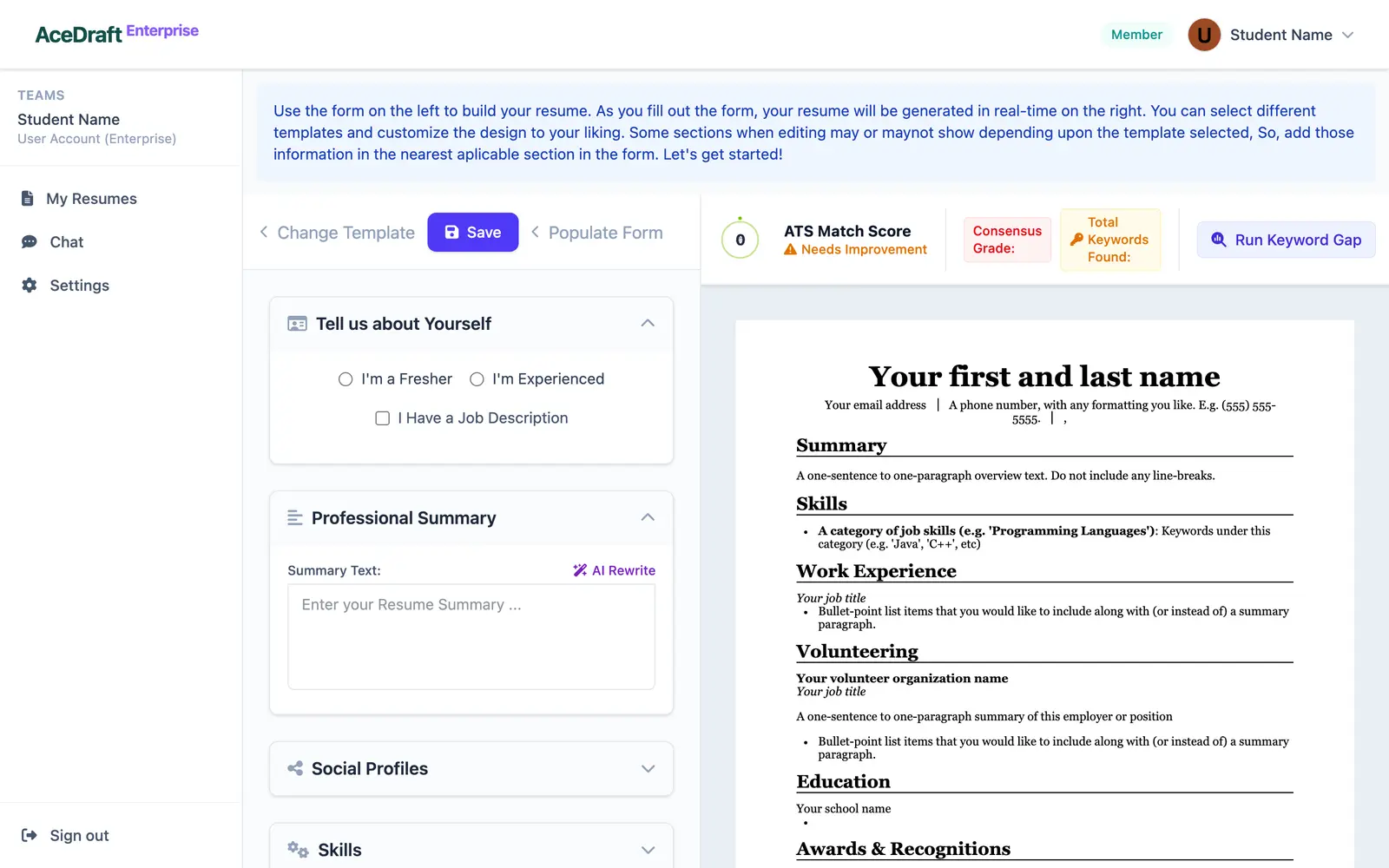 The editor toolbar on the enterprise route, with the Save button beside Change Template.
+ Create a resume on the resume list opens the blank editor. Edit on a row opens /enterprise/editor/ plus that resume's id, and the editor loads that resume's saved values before you can type into it. If the fetch fails you get "Could not load the saved resume. Please try again." and an empty form, which is not a great pairing and is the same on the personal side.
What Save does here
The button reads Save, and Saving... while it works. Required fields have to be filled first; if they are not, the form marks them and nothing is sent.
On this route the save writes a draft row against the email from your enterprise session, then loads the enterprise export page as a fresh document rather than a client-side route change. The personal version of this screen goes to its own export page, and the signed-out version goes somewhere else again. Same button, three destinations, chosen by the URL you are standing on.
That draft row is why an unfinished resume shows up on My Resumes at all, and it is what the export page later finalises instead of inserting a second copy.
Two details that only make sense from the code
The AI rewrite buttons beside the long-text fields check whether you are signed in for the route you are on. On the enterprise route that means the enterprise session, not the consumer one. With a job description filled in, the buttons generate. With the field blank, you get a dialog headed "To access the resume generation feature, please provide a job description." The paid-export upsell that free visitors see behind those same buttons cannot appear here.
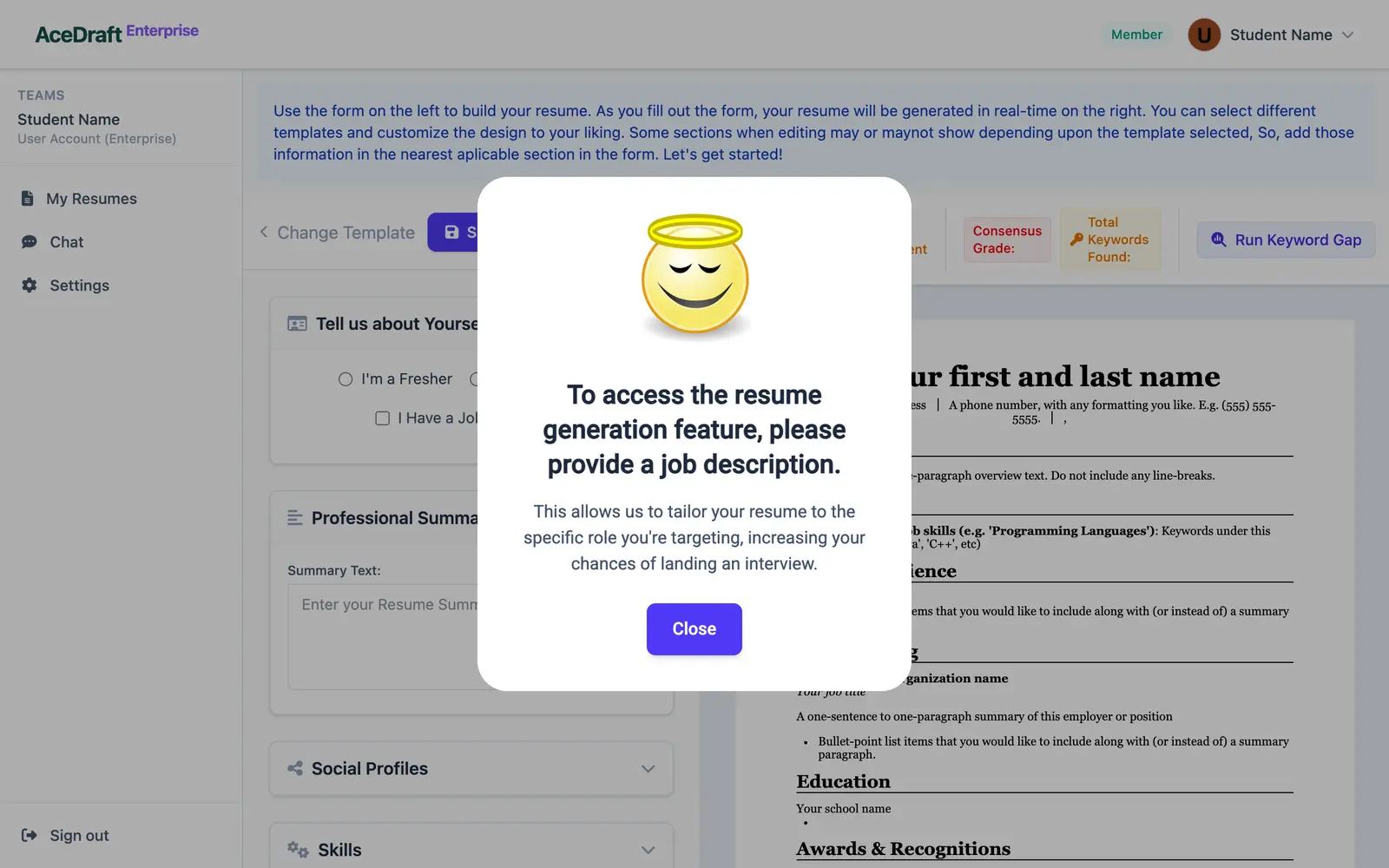 The dialog that appears when an AI rewrite is pressed with the job description left blank.
The other detail is an absence in the toolbar. The lifetime-exports counter that can sit at its top right is fed by a balance call that only fires when a consumer login is in storage, and the enterprise sign-in never writes that key. So the widget is silently off for every student, always.
Use this if you are a student in a batch and you got here from My Resumes, with time left on that batch.
Skip this if you are an admin or moderator hoping to edit someone's resume from this URL. The role check will not let you, and that is the correct answer.
Related pages
Comments
No comments yet. Be the first to comment.