Build a Resume Free, No Signup: The Guest Editor
 Gowri Shanker·Oct 5, 2026
AceDraft's guest editor is a free resume builder with no sign up step: /ghosteditor has no route guard, so you land straight on the template picker, and the form is one click after that. Before you click it, here is the part I would want to know first. Your draft lives in your own browser's storage, so clearing site data, switching browsers, or picking up your phone instead loses the lot.
If that is a dealbreaker, I would rather you learned it now than after forty minutes of typing. Editing is free, and so is a plain-text PDF: press Save and the export screen offers an ATS-ready text PDF with no sign-up and no watermark. The polished export next to it is the paid one.
Key takeaways
- No account, no email address, no card. The editor opens for anyone.
- Pressing Save takes you to
/progress, where a plain-text ATS PDF downloads free, with no sign-up. The polished export beside it needs a Google sign-in and then a Razorpay checkout. - Limitation: guest work is held in browser storage, and navigating back to the AceDraft home page clears guest resume state. Finish in one sitting, in one browser.
- The name, email, phone and address fields do not exist until you tell the form whether you are a fresher or experienced. That caught me out while writing this, and I wrote the page.
What do I need before I start?
A browser. That is the whole list. There is no plan tier to pick, no verification email, and no onboarding wizard between you and the first text box.
Two things worth setting up anyway: stay on the device you intend to finish on, and have the job posting you are targeting open in another tab, because the keyword tools on the right-hand side are more useful with one.
Step 1. How do I open the resume builder with no account?
Go to the guest editor directly. The first screen is the template picker, not a signup wall.
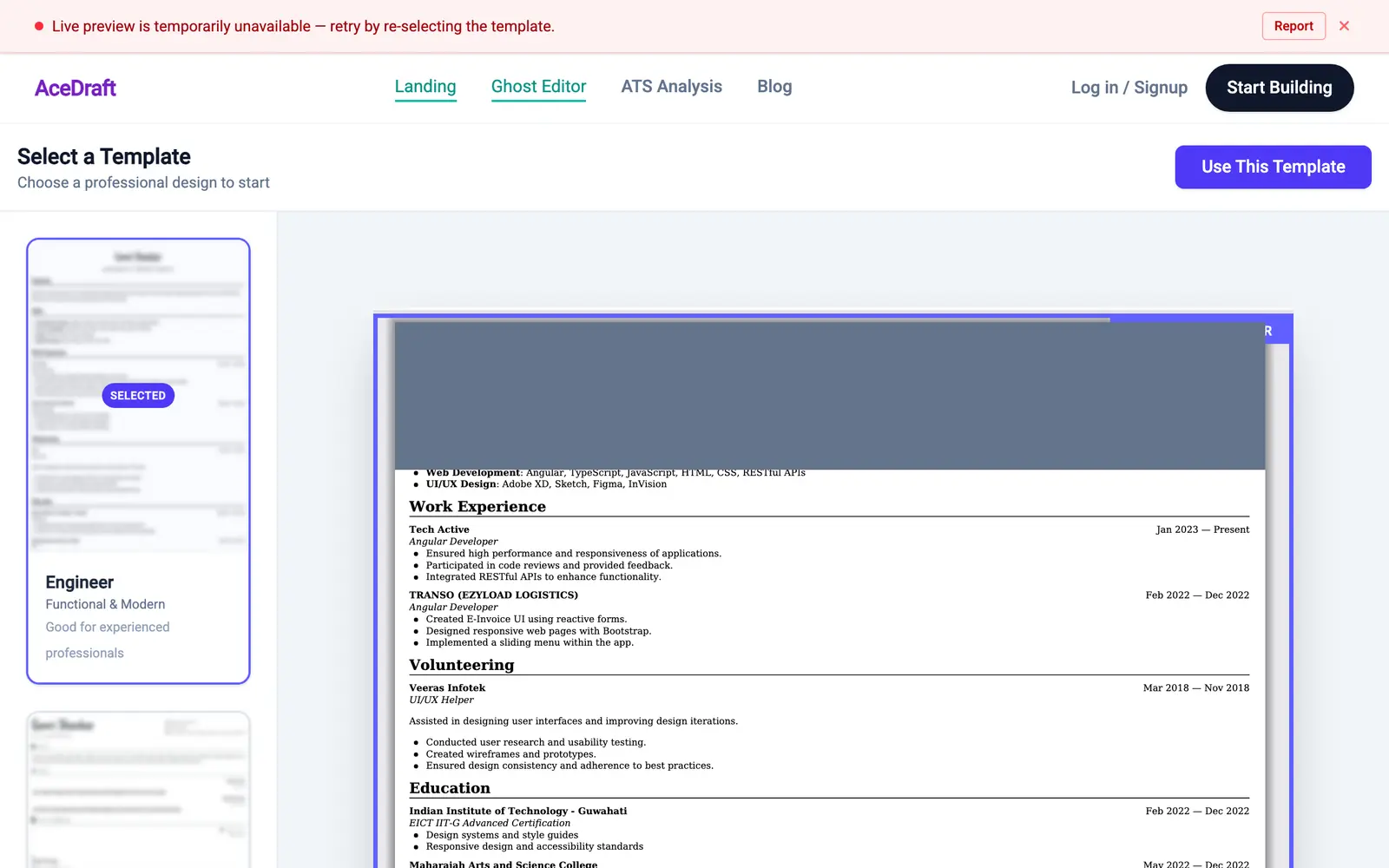
The red banner in that shot is not a product state. The local backend was down when these screenshots were taken, so the render service that draws the preview was unreachable. I left the banner in rather than cropping it out or faking a preview.
Step 2. Which template should I choose?
Six templates sit in the left rail (checked on the live page on 5 October 2026), each with a one-line note on who it suits. Engineer is described as "Functional & Modern, good for experienced professionals", Americano as "Standard & Reliable", and Paper as "Minimal & Clean", flagged as ideal for freshers. Telephone, Straight Forward and Evened are each tagged "Simple & Effective".
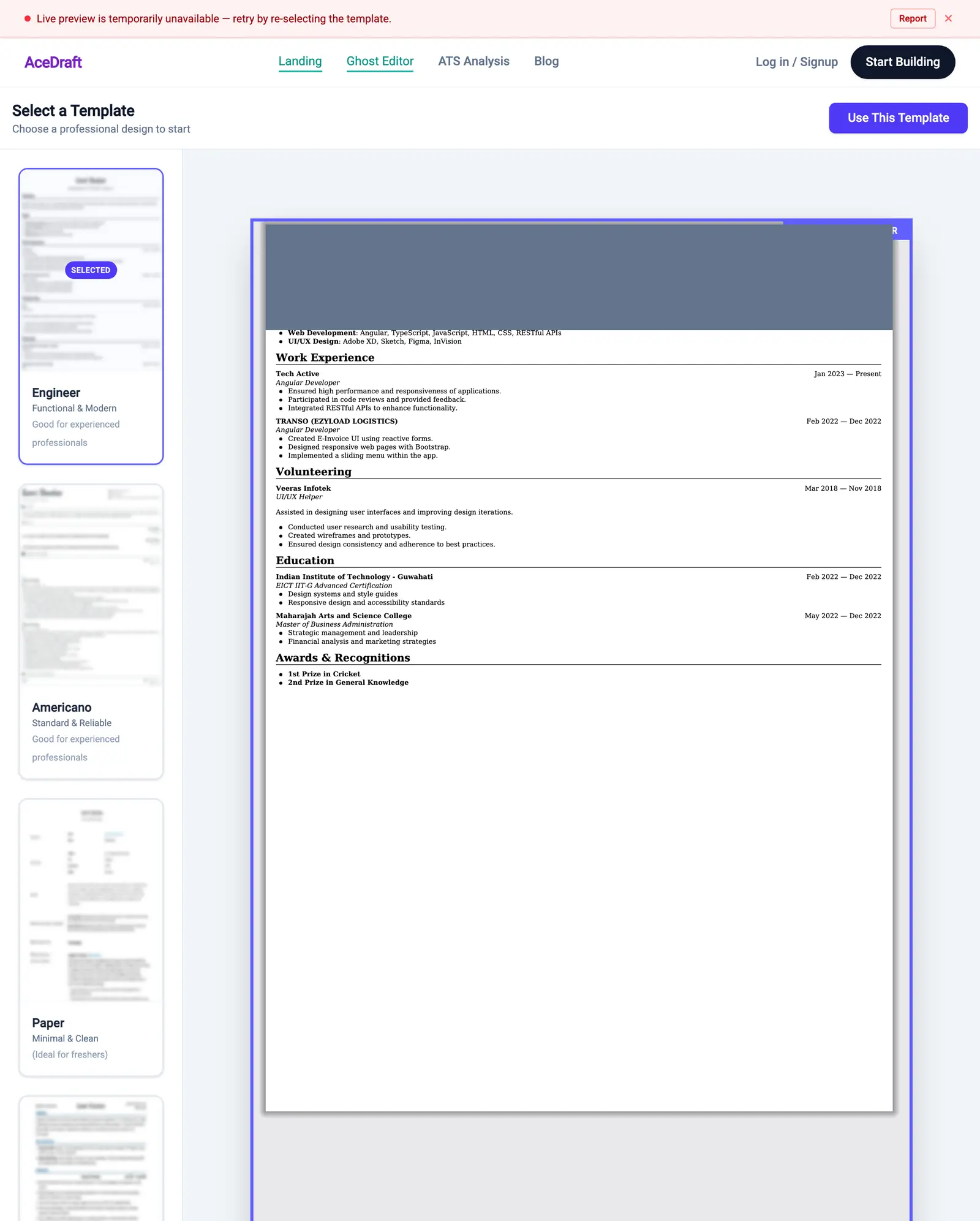
You are not locked in. A Change Template button sits above the form on the next screen, and your typed content carries across.
What does "ATS-friendly" actually mean here?
On this page it means three concrete, boring things, which is the same wording the AceDraft FAQ uses: readable fonts, clear margins, and a layout that is easy to scan. Nothing more mystical than that.
I am deliberately not going to tell you how Workday or Greenhouse parses these templates. I have not submitted a resume through either of them and timestamped the result, so any claim I made about it would be decoration.
Step 3. What does the empty editor look like?
Click Use This Template and the screen splits: a form on the left, a preview on the right, and a scoring bar across the top right.
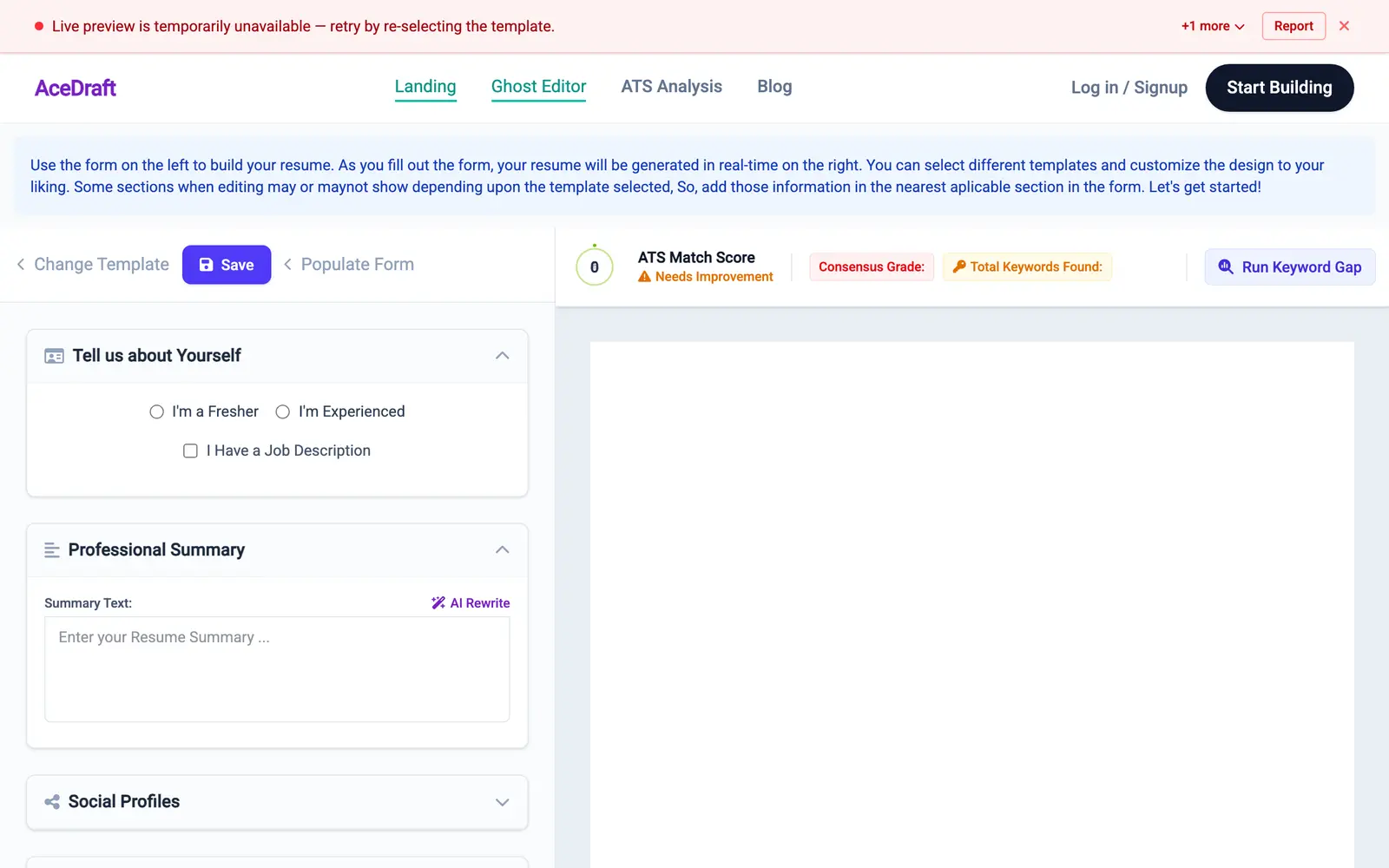
While you are looking at that blue instruction strip: in the build I captured on 2026-09-14 it contains two typos, "maynot" and "aplicable", plus a run-on sentence. I found all three writing this tutorial. They are on my list.
Step 4. Why are the name and email fields missing?
Because they have not rendered yet. The Tell us about Yourself section gates them behind a single choice: pick I'm a Fresher or I'm Experienced, and the identity block appears underneath with full name, desired position, address, email and phone.
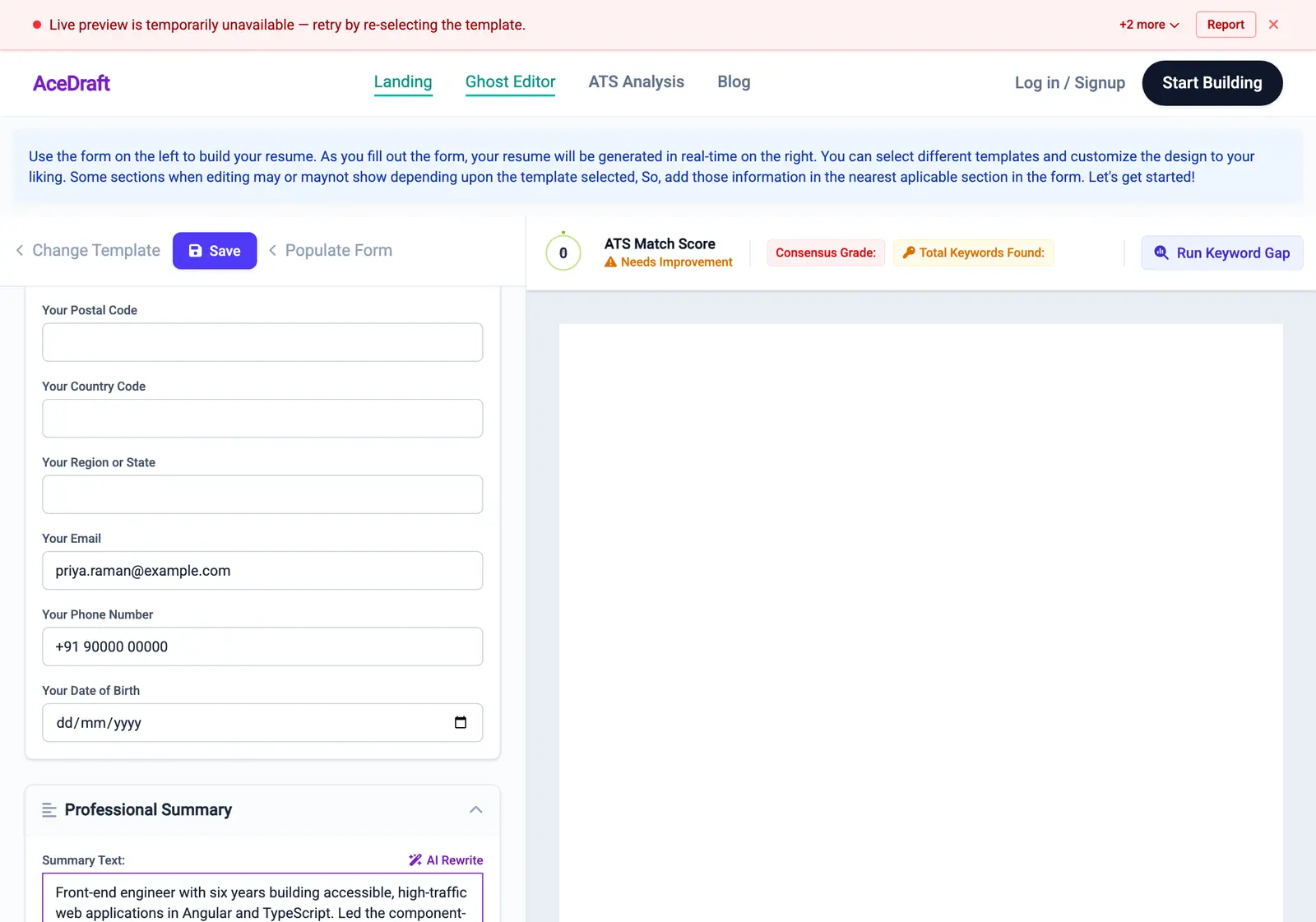
Heads up. Do not click back to the AceDraft home page mid-draft. Landing on / as a guest clears guest resume state, and there is no undo prompt before it happens.
Step 5. How do I write the summary?
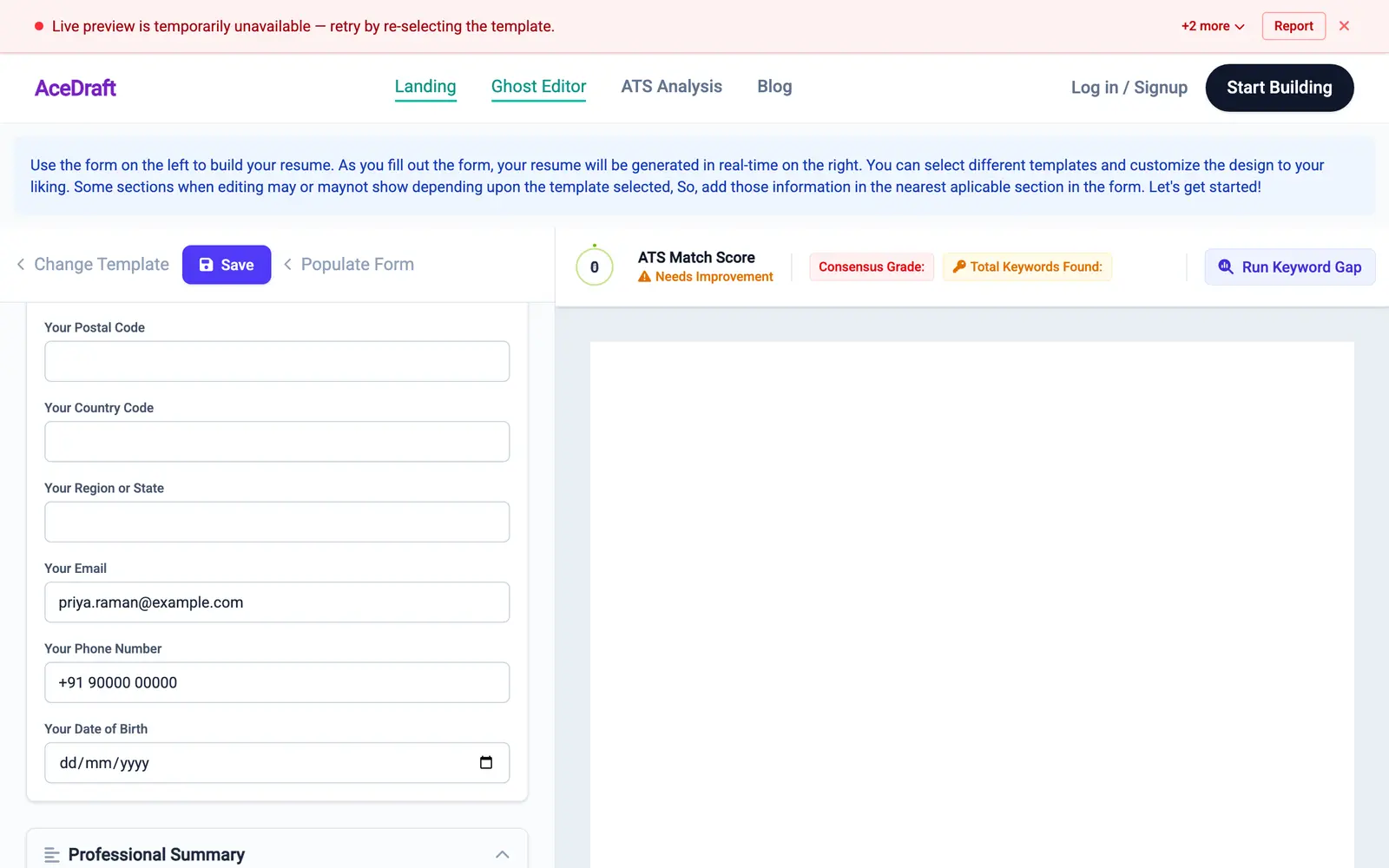
The Professional Summary box is a plain text area with an AI Rewrite link beside it. Type into it like any other form field.
Step 6. What costs money?
Only the polished export. Everything above this line is free to do as many times as you like, and so is getting a basic file out. Press Save and /progress offers a plain-text, ATS-ready PDF with no sign-up and no watermark. On the web it opens your browser's print dialog, where you choose Save as PDF.
The paid card beside it rewrites your content for recruiters and ATS, runs a full keyword-gap analysis, and produces a polished PDF. That path asks for a Google sign-in, then a Razorpay checkout. It is one payment per export, not a subscription. Neither option offers DOCX on that screen.
I did not capture the export screen for this tutorial. The walkthrough on saving your resume as a PDF has screenshots of both cards.
What this doesn't do yet
| What the guest editor does | What it doesn't |
| Opens with no account, no email, no card | Doesn't sync your draft anywhere. Browser storage only. |
| Six templates (as of 5 October 2026), switchable without losing typed content | Doesn't let you edit the template itself, only choose one |
| Live preview and an ATS Match Score dial beside the form, neither of which I captured working | Both need the backend reachable. Every screenshot on this page was taken with my local backend down, so the red banner and the blank pane are my environment, not a product state I am documenting. |
| Same editor component as the Pro and enterprise editors, so nothing is dumbed down for guests | Doesn't give you the polished PDF for free. The free export is plain text; the polished one needs sign-in and payment. |
Author's take
I think the no-guard decision is right and the storage decision is the weak part. Letting anyone type a full resume before asking for anything is the only honest way to let someone judge a builder, and I would not put a wall back in front of it.
But browser-only storage puts the cost of the whole thing on one accidental tab close, and the home-page behaviour that wipes guest state is worse than that, because it punishes a completely reasonable click. If I could do one thing to this page next, it would be that, ahead of any new feature.
Use this if you want to judge the editor before handing over an email address, you can finish in one sitting on one device, and a plain-text PDF is enough for your first file.
Skip this if you need to start on one device and finish on another, or you want a DOCX file. Guest drafts are stored only in this browser, and the export screen offers PDF only, so that is a bad afternoon.
Related
- Open the guest editor and try the template picker yourself.
- Run the free ATS resume checker once you have a draft worth scoring.
- The AceDraft FAQ, including the wording behind "ATS-friendly" quoted above.
Comments
No comments yet. Be the first to comment.