Save Your Resume as a PDF From the AceDraft Editor
 Gowri Shanker·Sep 29, 2026
If all you want is to save your resume as a PDF, you do not have to pay AceDraft anything. The free button on this screen does that, with no account and no card, and I would rather lead with it than bury it under the part I charge for. Here is the more awkward admission: the screen this page documents is a checkout, it is not in the site navigation, and you cannot reach it by typing the URL. It only appears after you press Save in the guest editor, which means it shows up at the exact moment money comes up. That is a deliberate design decision and it is also the reason this page exists.
Key takeaways
- The free download needs no sign-up. On the web it opens your browser's own print dialog, where you pick Save as PDF. The default filename is
Resume-YYYY-MM-DD. - Paying buys four things the card lists: a rewrite of your content for recruiters and ATS, a keyword-gap analysis, a polished PDF, and a copy kept in your account history.
- Nothing you build as a guest is on AceDraft's servers. The editor's Save writes to your browser's storage, so clearing site data or switching browsers loses the draft.
- The paid path makes anonymous visitors sign in with Google before checkout opens. If you are already signed in, the Razorpay sheet opens straight away.
- There is no way in except through the editor.
How do you reach AceDraft's export screen?
Finish a resume in the guest editor and press Save. That is the only route in. The editor sends you here itself once the form validates, and if a required field is empty it refuses to move and marks the offending fields red instead.
You cannot start here, and you cannot bookmark your way back. If you open the export screen in a fresh browser with no saved resume behind it, there is nothing for it to give you.
What does "save progress" actually save?
On the web it saves to your browser's local storage, and nowhere else. Pressing Save in the guest editor writes three things into that storage: the form values you typed, a structured JSON version of the resume, and the rendered HTML of the resume in whichever template you picked. In the desktop and mobile builds the same keys go into a local SQLite database instead. Either way it is your device, not my database.
Which means the honest answer to "is my resume saved?" is: yes, on this machine, in this browser, until you clear site data. Incognito loses it when the window closes. A different browser never had it.
Nothing on the export screen uploads your resume. The only outbound calls it makes are the ones that create and confirm a payment. The paid card's fourth tick, Saved to your history, is the only item on this screen that involves putting a copy on the server at all.
How do you save your resume as a PDF for free?
Click Download free (ATS text PDF) on the left-hand card. No sign-in and no payment. No watermark either.
This does not behave like a normal download button, so let me be precise. On the web it does not drop a file into your Downloads folder. It renders the resume HTML your editor saved into a hidden A4 page and waits for the fonts and images to finish painting. Then it opens your browser's print dialog, where you choose Save as PDF as the destination and pick where the file goes. Chrome takes the suggested name, Resume-YYYY-MM-DD with today's date filled in, and appends the extension; Firefox and Safari use their own naming conventions and may ignore it. In the desktop app the flow is different again, because Electron renders the PDF and gives you a native save dialog.
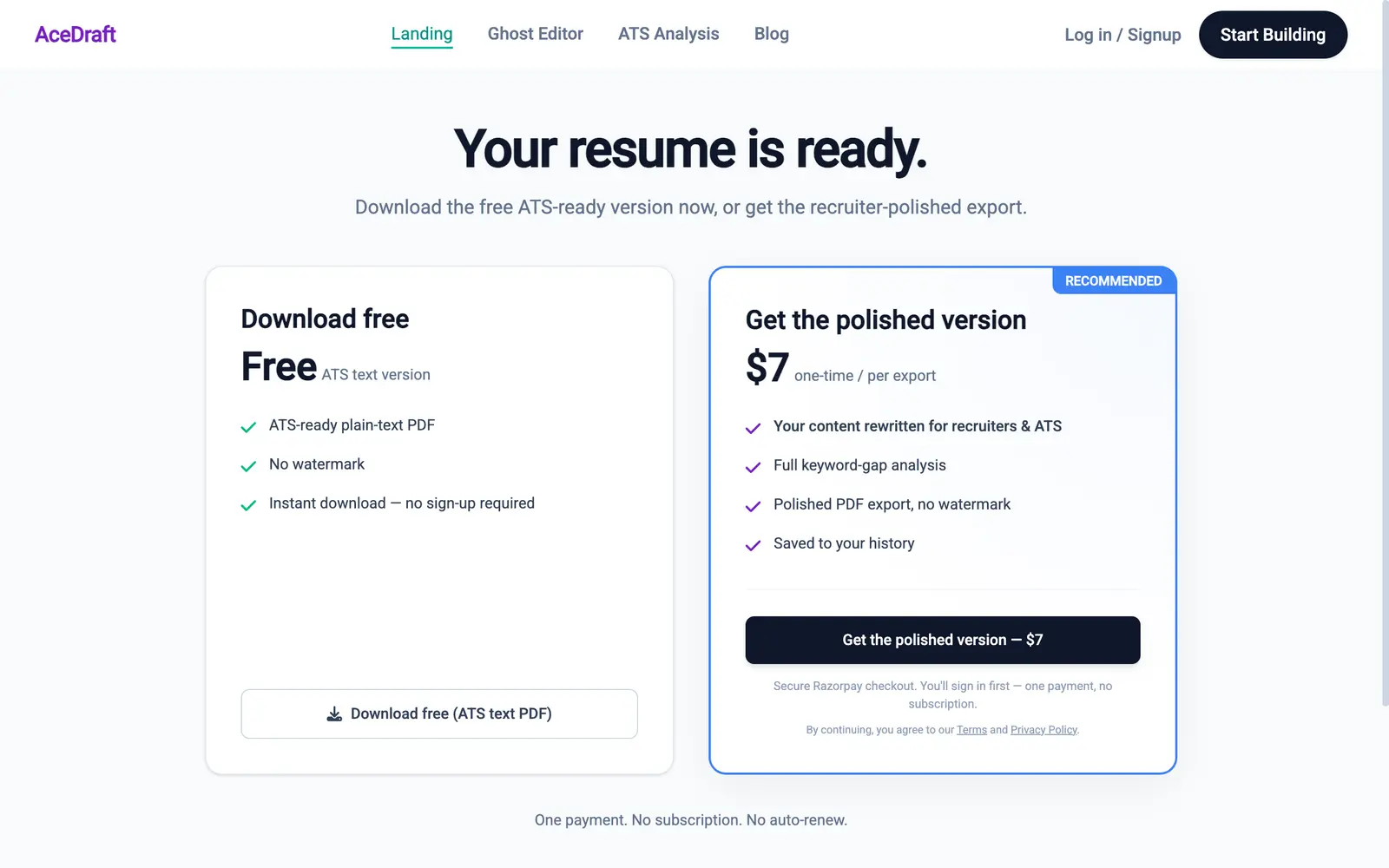 The header still reads "Log in / Signup" here. Everything on this screen is visible to a visitor with no account; only the right-hand card needs one.
After the print dialog fires, a small popup offers to share a free ATS scan with someone else, and carries a single line about what the paid version would have done differently. You can close it with No thanks, I'm done. It never blocks the download, because the download has already happened by the time it appears.
What does the paid export add that the free one does not?
Four things, and the boundary between them is worth reading before you decide. I have put what each option withholds in the same table as what it gives you.
| Compared on | Free download | Paid polished export |
| What the file contains | The resume exactly as you wrote it, in the template you picked | Your content rewritten for recruiters and ATS |
| Keyword-gap analysis | No | Yes, the full report |
| Watermark | None | None |
| Account required | No | Yes, Google sign-in before checkout |
| Copy kept in your history | No. It lives in your browser only | Yes |
| How you get the file | Your browser's print dialog, which you have to complete yourself | Delivered by the export flow after payment |
| DOCX or Word version | Not offered on this screen | Not offered on this screen |
| Billing shape | Nothing to bill | One payment per export. The page states "No subscription. No auto-renew." |
That DOCX row is the one I expect to get email about. This screen hardcodes PDF as the format for both paths, so neither button here will hand you a Word file, whatever you may have read about ATS parsing preferences elsewhere.
Author's take. If your resume is already written the way you want it and you just need a clean file to attach to an application, take the free download and go. The paid export is worth it when you want the wording changed, not when you want the file format changed. I built the upsell and I still think that distinction is the only honest way to describe it.
Do you need an account to pay?
Yes. Clicking the paid button as an anonymous visitor opens a Google sign-in dialog, with a Cloudflare Turnstile human-verification checkbox above it. The payment window comes after that, and the small print under the button warns you before you click.
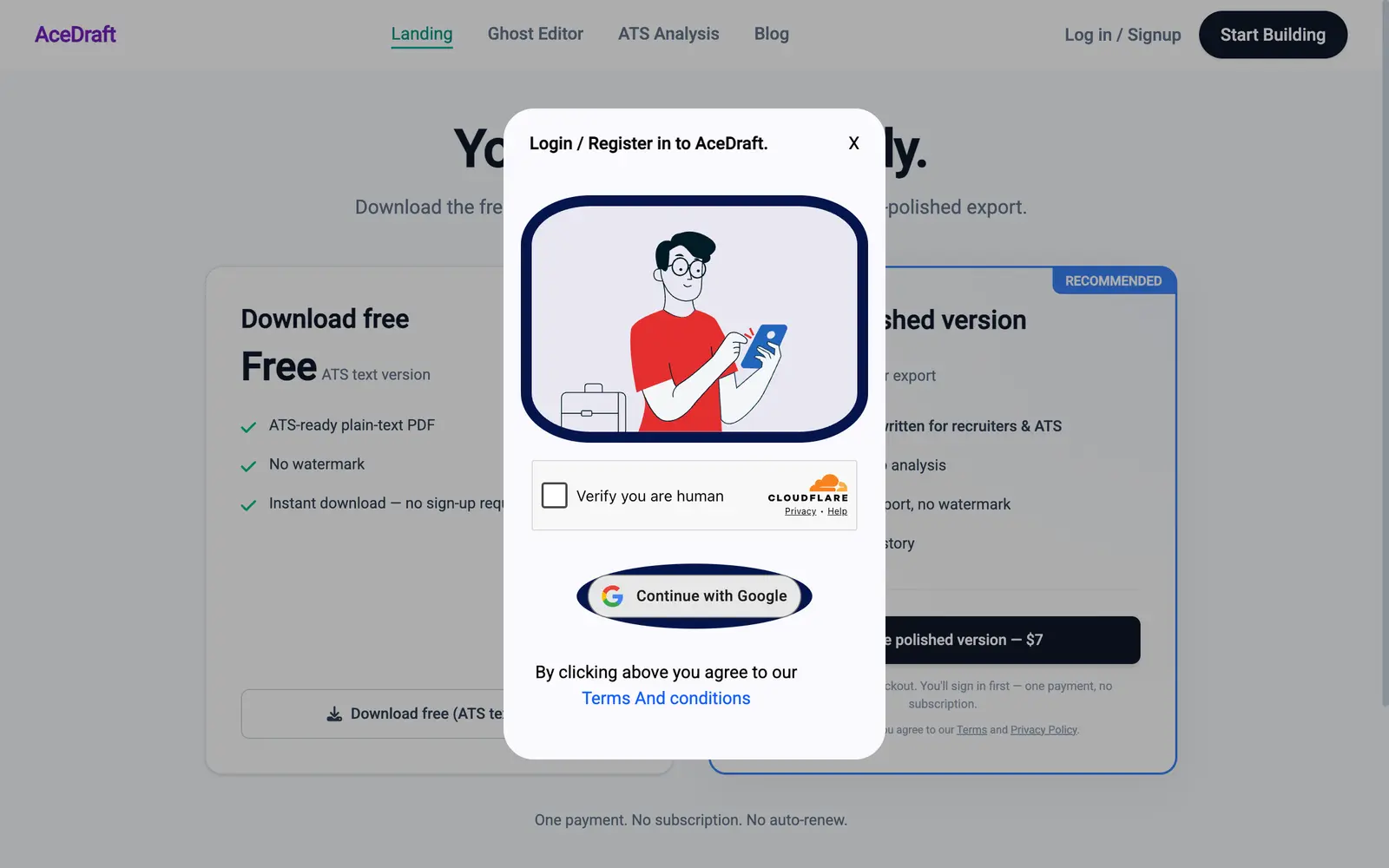 This is what the paid button does for a guest. The sign-in dialog, not the payment sheet.
Google sign-in is a full-page redirect, so the browser leaves AceDraft and comes back. The flow remembers that you were mid-purchase and resumes at checkout when you land, rather than dumping you back on the export screen to click the button a second time.
If you were already signed in when you arrived, none of the above happens. The button goes straight to the payment sheet.
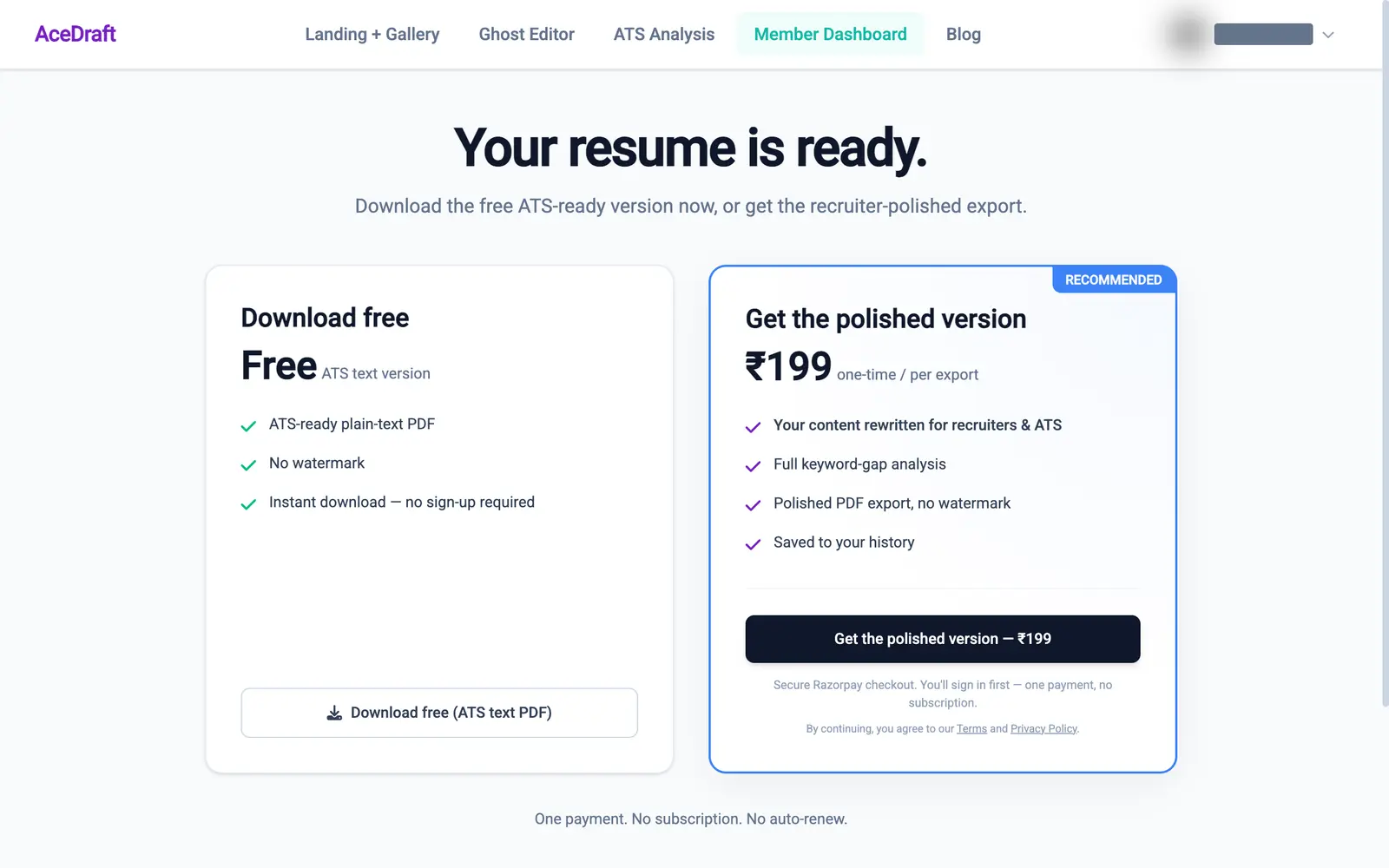 The account chip at top right is masked here. Note that the navigation gains "Member Dashboard" once you are signed in, which is where a completed payment sends you.
Arriving with a lifetime-deal code. If you reach the export screen with a ?code= parameter on the URL, it does not get consumed here. The page hands the code straight to the OAuth loading route so it survives sign-in, which is what lets a presale or partner code carry through a flow that starts in the editor. You redeem it on the redeem page.
What happens inside the Razorpay checkout?
The page asks my backend to create an order first, then opens Razorpay against that order. This matters more than it sounds. The publishable key the checkout runs under comes back with the order the server created, so the key travels with the order instead of being fixed when the app is built. There is still a build-time key underneath it as a fallback, used only if an order comes back without one.
The figure on the paid card is regional. The page makes a guess from your browser's locale and reconciles it against the pricing table on the server.
The two guest screenshots on this page were captured against a local development backend and the two signed-in ones against the production API, so the amount on the paid card differs between them. Treat any figure you see on the paid card as illustrative. What you are charged comes from the order the backend creates when checkout opens.
The sheet opens on Contact details and wants a mobile number before it will show you a payment method. Payment options sit behind it: UPI, cards, and a QR block.
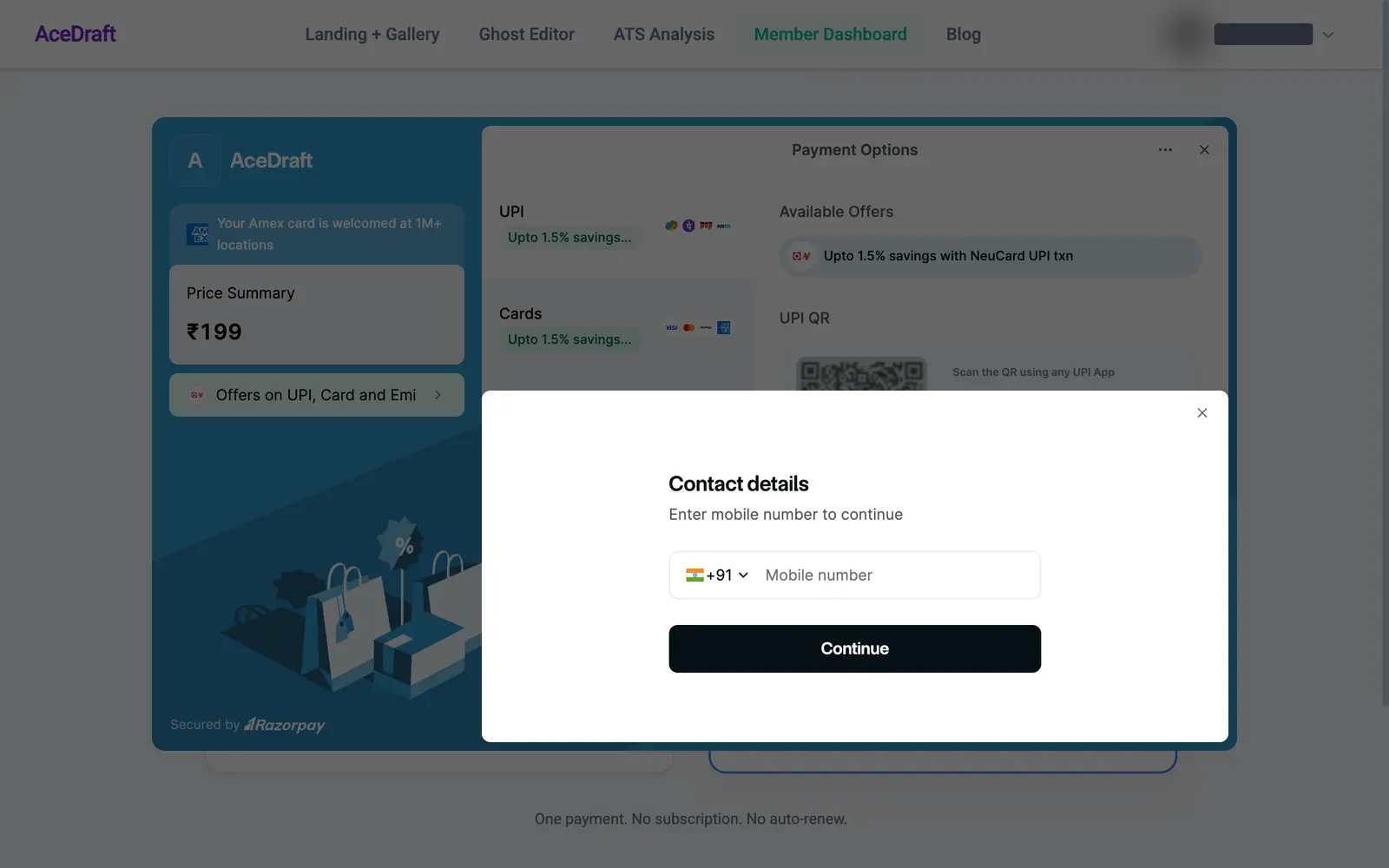 Checkout opens on Contact details and asks for a mobile number before any payment method. The capture stopped at this step; the field is empty and nothing was submitted.
When a payment succeeds, Razorpay hands the payment ID back to the export screen, the screen posts it to the backend to be recorded against the order, and about six seconds later you land on the member dashboard. Closing the sheet deliberately is not treated as a failure. The button simply becomes clickable again.
Heads up. If the confirmation step cannot verify a payment, the screen returns with a message telling you your resume is saved and asking you not to pay again, and pointing you at [email protected] with your payment ID. That wording is deliberate. The same branch is reached when a card was charged but the recording failed, and telling everyone in that state to "try again" would invite a second charge. If you see it, email rather than retry.
What this screen does not do yet
- It has no entry point of its own: not in the header, not in the sitemap, and not reachable by URL unless a saved resume is already sitting behind it in that browser.
- The free path depends on your browser's print dialog, so the last step is out of my hands and the filename behaviour varies by browser.
- Guest drafts are device-local. There is no "email me a link to continue on my laptop" on this screen.
- No DOCX. Both buttons produce PDFs.
Billing and account questions that this page does not answer live in the FAQ.
The thing I would fix first is the first bullet. A page that only exists inside one funnel is a page nobody can return to, and "where did that screen go" is a support question waiting to happen.
Use this if… you want a PDF of the resume you just wrote and you are happy to finish in your browser's print dialog. That is free, immediate, and the file has no watermark on it.
Pay here if… you want the wording itself reworked against recruiter and ATS expectations, you want the keyword-gap report, and you want the export kept in an account you can come back to.
Skip this if… you have not finished the resume. Go back to the editor — or run a free ATS scan on what you have first, since it costs nothing and it will tell you whether the wording is worth paying to change.
Comments
No comments yet. Be the first to comment.