The AceDraft Editor When You're Signed In: What Changes
 Gowri Shanker·Sep 29, 2026
This is a companion note, not a full tutorial. The short version: signing in leaves the editor alone and changes what surrounds it.
For the actual walkthrough of the fields, the sections and the templates, read the guest editor tutorial. The signed-in route runs the same component as the signed-out one, so every step in that post applies here, one for one.
What does signing in actually add to the editor?
A shell around it. You get the AceDraft top bar with an account menu, and a left workspace rail holding Dashboard, ATS Insights, and an account group with billing and settings. Signed out, the editor renders on its own with none of that.
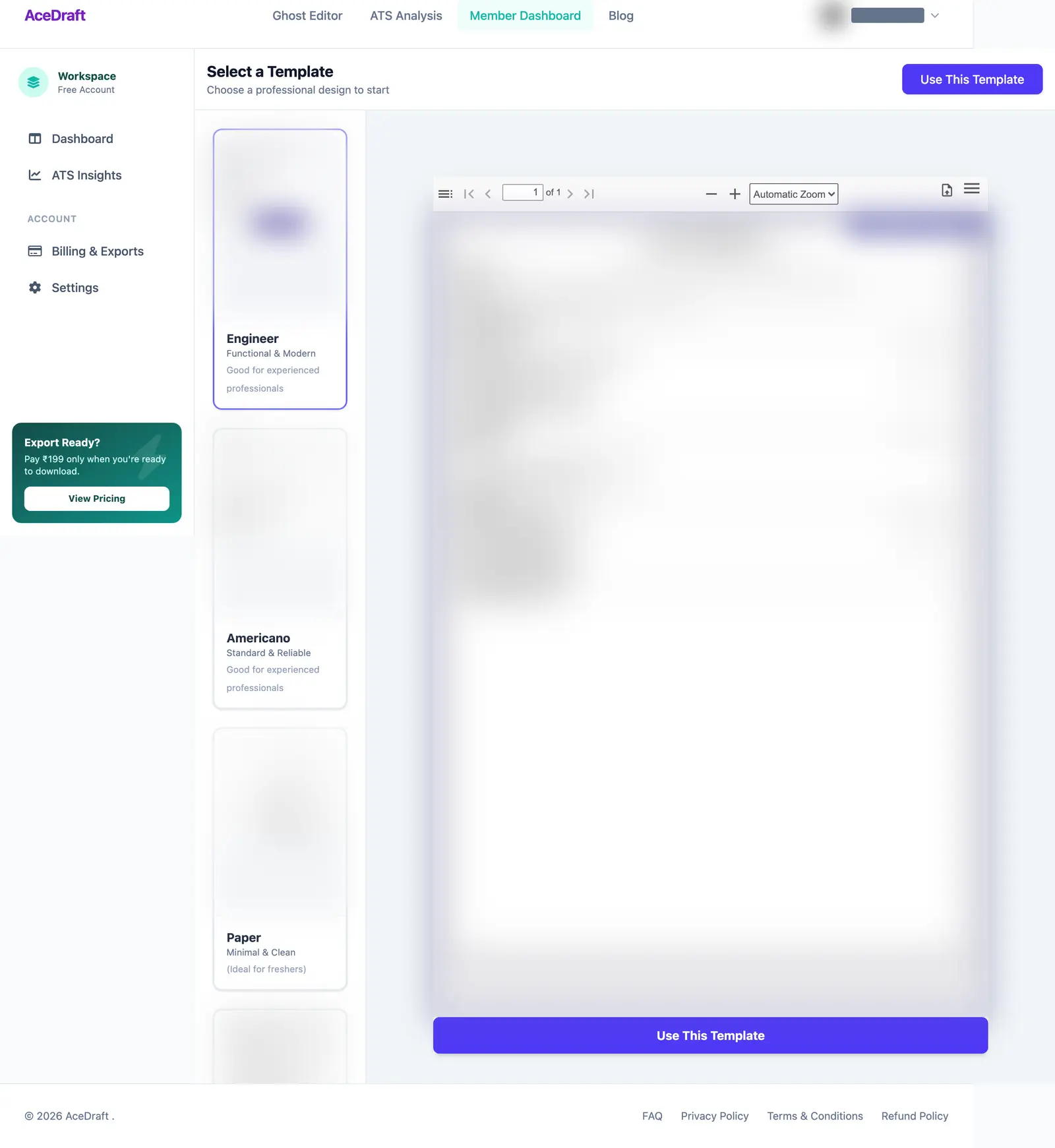 The template previews and thumbnails are blurred in this capture. Everything outside them is the live screen.
Is anything inside the editor itself different?
One thing, as far as I can see. A Remaining Lifetime Exports counter appears in the editor toolbar once a template is in use. The template column is unchanged: Engineer, Americano and Paper, same taglines, same preview pane, same button.
| Thing | Signed in |
| The editor screen | Identical. Same component, same steps. |
| Getting to it | Guarded. Visit it signed out and you don't get the editor. |
| Around the editor | Workspace rail and account menu. |
| Export counter | Shows remaining lifetime exports in the toolbar. |
| Paying to export | I haven't tested export from this route yet, so I won't claim it matches the guest route. Assume nothing until I write that up. |
| Where a save lands | The rail has a Dashboard entry. What it lists isn't documented yet, and I'm not going to describe a screen I haven't captured. |
Use this if you want your work attached to an account and the rest of the workspace one click away.
Skip this if you came here hoping the signed-in editor has more features than the free one. It doesn't. It's the same editor with a rail beside it.
Comments
No comments yet. Be the first to comment.